5031 N Gay Ave, Portland, OR 97217
Silhouette Studio

Duplication Setup

Establishing repeatable matrix structures and bounding geometry across multi-variant label production sheets in Silhouette Studio.

Arthur Pendelton October 4, 2026 7 min read
Duplication Setup
Calibrating step-and-repeat offsets and text box containers within the Silhouette Studio workspace.
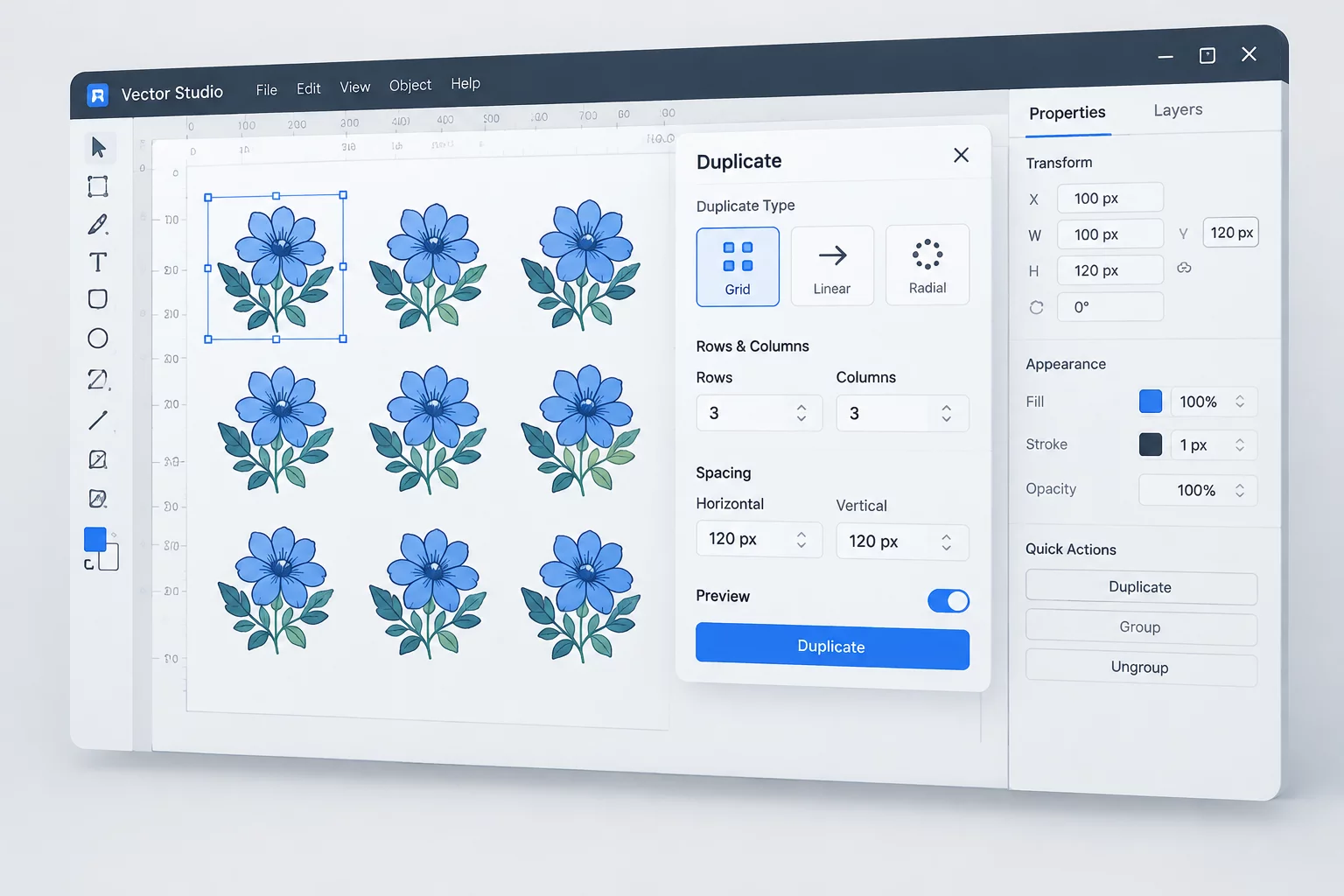
Matrix Method Replicate Panel (Grid 4x3)
Gap Spacing 3.5 mm Minimum Cut Safe
Text Handling Centered Box Anchor Lock

Architectural Foundation for Multi-Variant Grids

Creating hundreds of custom product stickers or event badges requires moving beyond manual copy-paste habits. In Silhouette Studio, duplication setup forms the structural backbone for every print-and-cut label job that contains changing typography. When duplicate geometry lacks mathematical precision, registration drifts accumulate across the mat, resulting in offset kiss cuts, clipped ascenders, and uneven weed margins.

Production accuracy starts by separating the unchanging base contour from the variable typographical placeholder. Designers often make the mistake of duplicating completed designs before testing extreme string lengths. Setting up the master instance first ensures that every successive duplicate automatically inherits verified vertical clearances, optical balance markers, and cutter registration margins.

Primary Geometry Requirements

Before triggering any automated replication sequence, verify three mandatory layout parameters on the parent object:

  • Fixed Boundary Contour: Maintain outer die-cut path attributes on a locked dedicated vector layer with zero line-weight fill.
  • Text Box Constraints: Establish exact auto-center text bounds with fixed kerning baselines rather than relying on unbound artistic text strings.
  • Weed Margin Offsets: Provide a strict 3.5 millimeter separation between adjoining label perimeters to prevent adhesive tear during peeling.

With these geometric parameters locked, duplication ceases to be a gamble. The software can array identical shells across standard media sheets while isolating the editable name records inside clearly delineated vector envelopes.

Step-by-Step Duplication & Placement Strategy

Achieving consistent kiss cuts across twenty or fifty labels demands an orderly configuration process in the Replicate toolset. Follow these operational stages when arranging sheets for desktop vinyl cutters:

  1. Select the parent label group and launch the Replicate Panel, setting custom column and row counts rather than utilizing the Fill Page default, which often crowds boundary borders.
  2. Apply custom offset values matching blade downforce tolerances, verifying that registration marks maintain at least a fifteen-millimeter clearance from all cutting vectors.
  3. Ungroup typography layers independently across all duplicate clones to insert unique variable names while leaving outer vector cut paths grouped and intact.

Following this sequential separation guarantees that blade paths remain completely synchronized across the entire cutting mat, regardless of how drastically text widths change from one recipient name to another.

Essential Production Principles

  • Lock the master cutting vector before duplication to avoid accidental nudges and slight micro-angle deviations across the matrix.
  • Always preserve at least 3.5 mm spacing between neighboring cut lines to stop blade traction pull from wrinkling release backing paper.
  • Test extreme short and long name variants in corner positions where mechanical optical sensor deviations are most pronounced.
Tags: Silhouette Studio Step & Repeat Print & Cut Batch Production
Arthur Pendelton
Senior Print & Cut Specialist

Arthur Pendelton

Arthur has spent over a decade standardizing digital die-cut templates and industrial small-format plotting workflows, helping studios eliminate registration errors in custom label runs.

Field Q&A

Duplication Setup Solutions

The Fill Page command automatically calculates maximum density without considering registration mark read failures or perimeter blade drag. Manual Replicate offsets allow consistent weed spacing and keep paths safely away from optical sensor margins.

Always format text within a defined text boundary box set to center alignment prior to cloning. When names of contrasting length replace placeholder copy, the baseline stays anchored along the central coordinate axis.

If cut lines and printable art share one group, subsequent ungroups can inadvertently assign cut attributes to print borders. Assign distinct line colors to cut contours in the Send panel so paths execute cleanly regardless of visual groupings.

Refine Your Multi-Variant Label Workflow

Explore comprehensive production checklists, spacing calibration formulas, and technical guides tailored for desktop cutter operators.